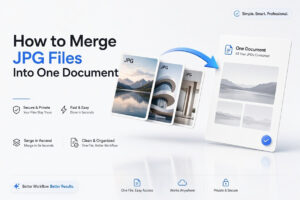
JPG files are easy to share, but managing several separate images can become inconvenient when you need to send a document, create a visual sequence, or print photos in a specific order. Learning how to merge JPG files lets you turn multiple images into one combined image without changing the original files. You might place scans of separate pages into a single long image, join before-and-after pictures side by side, or build a simple photo collage for social media.
The best method depends on the result you need. A quick online merger works well for occasional use, while built-in tools on Windows, Mac, Android, and iPhone can be better for private images or recurring tasks. This article explains the most practical ways to combine JPEG images, how to preserve image quality, and what to do when files have different sizes or orientations. By the end, you will be able to choose the right tool and create a clean, properly ordered merged image.
What Merging JPG Files Means
Merging JPG files means combining two or more separate JPEG images into one new image file. The original photos or scans remain unchanged unless you deliberately overwrite them, so it is usually a safe way to prepare a single shareable image.
A merged JPG can be arranged vertically, horizontally, or in a grid. Vertical layouts are useful for combining document scans or screenshots in reading order. Horizontal layouts work well for comparisons, while grid layouts are commonly used for collages, product images, and photo recaps.
Choose the Right Layout Before You Combine Images
Decide how the finished image should look before uploading or editing anything. The layout affects readability, file size, and the amount of editing required. For example, six full-size photos stacked vertically may create an image that is difficult to view on a phone.
Think about the purpose of the file. A merged image for printing needs more careful sizing than one sent in a chat. If you are combining receipts, forms, or pages of notes, place them in a logical reading order and keep their orientation consistent.
Useful layout choices include:
- Vertical stacking for scanned pages, screenshots, and long instructions
- Horizontal placement for before-and-after photos or visual comparisons
- Grid placement for photo collages and product collections
- White spacing between images when you need a cleaner, more readable result
- No spacing when separate images should appear like one continuous document
Merge JPG Files With an Online Image Combiner
Online image-combining tools are often the fastest choice when you do not want to install software. Most let you upload multiple JPG images, drag them into order, choose a layout, and download the final file. This approach is especially convenient for a one-time project.
Before using an online service, consider the sensitivity of your images. Avoid uploading identification documents, private financial records, medical information, or confidential work files unless you trust the service and have reviewed its privacy practices. For private material, a built-in desktop or mobile method is usually safer.
Basic Steps for an Online Merger
1. Open a reputable image-combining website in your browser.
2. Upload the JPG files you want to join.
3. Drag the thumbnails into the correct order.
4. Select a vertical, horizontal, or grid layout.
5. Adjust margins, background color, or image size if those settings are available.
6. Preview the merged image carefully.
7. Export or download the finished JPG using a clear filename.
Check the Export Settings
Some online tools reduce image dimensions automatically to speed up processing. That may be fine for social media, but it can make text blurry in scans. Look for options such as original quality, high resolution, or custom dimensions before exporting.
If the combined file becomes too large for email or messaging apps, save the high-quality version first. Then create a smaller copy for sharing. Keeping the original merged file gives you a usable backup for printing or future editing.
Combine JPG Files on Windows
Windows offers several practical options, depending on what is installed on your computer. Microsoft Paint is suitable for simple side-by-side or stacked images, while the Photos app can help with basic visual projects. For more control, image editors such as GIMP or Adobe Photoshop are useful.
Paint is often enough when you only need to merge a few images. It does not automatically organize files into a collage, so you will need to expand the canvas and position each image manually. The advantage is that your files stay on your computer.
Using Microsoft Paint
Open the first JPG in Paint and resize the canvas to make room for the other images. For a horizontal layout, increase the canvas width. For a vertical layout, increase its height. Then paste each additional image and move it into position.
Save the finished project as a new JPG file rather than replacing one of the source images. If the images have different widths or heights, use Paint’s resize option before arranging them. Matching dimensions gives the final image a more deliberate appearance.
Using a Desktop Image Editor
A dedicated editor is a better option if you need exact alignment, text labels, borders, or color corrections. Programs with layers make it easier to move each photo independently and change your mind without starting over.
Create a new canvas large enough for the finished layout, import each JPG as a separate layer, and align the layers. Export a copy as JPG once the placement looks right. For a more detailed editing workflow, see [Internal Link: photo editing basics].
Merge JPG Files on a Mac
Mac users can combine simple images with Preview, a built-in application that opens JPG files by default. Preview works particularly well when you need to create a vertical sequence of screenshots or scanned pages without installing another program.
For a more design-focused layout, use an image editor or a presentation-style application. Those options offer more control over text, spacing, backgrounds, and cropping. Preview remains the quickest choice when the goal is simply to place images together.
Combining Images With Preview
Open the first image in Preview, then open the second image in another Preview window. Select the second image, copy it, and paste it into the first image. You can then reposition and resize it before saving a new copy.
This method takes a little manual adjustment because Preview does not automatically expand the canvas in every situation. If you need to merge many photos, an app designed for collages or layered editing will save time and produce more consistent spacing.
Keep the Original Dimensions in Mind
JPG images from phones can be very large, especially when taken at full camera resolution. Combining several of them without resizing may create a file that is slow to open or impossible to email. Reduce dimensions only after considering the intended use.
For a digital-only image, a width of roughly 1,500 to 2,500 pixels is often sufficient. For detailed document scans or print work, retain more resolution. Always inspect small text at 100 percent zoom before deleting your source files.
Combine JPG Images on iPhone and iPad
On an iPhone or iPad, you can use a collage app, a design app, or a shortcut that joins images. The best choice depends on whether you need a quick vertical stack or a polished layout with borders and captions.
For a simple result, many image-editing apps let you select photos, choose a grid, and save the output to the Photos library. Review the app’s export quality settings, especially if you are combining screenshots of text or documents.
Practical checks before saving on mobile:
- Put photos in the correct order before creating the collage
- Rotate images so they all face the same direction
- Crop only when it improves the composition or removes irrelevant content
- Leave enough space around text-heavy screenshots to keep them readable
- Save the merged version as a new image instead of replacing originals
- Zoom in to check for blur, clipped edges, or unwanted gaps
Combine JPG Images on Android
Android phones vary by manufacturer, so the available tools may differ. Some gallery apps include collage or photo-grid features, while others require a third-party image editor. Google Photos can help organize images, but its available creation features can change by device and app version.
A collage tool is usually the fastest way to join photos on Android. Select the JPG files, choose a vertical, horizontal, or grid template, adjust borders, and export. If you are creating one long image from document scans, look for a tool that supports a freeform or vertical layout rather than a fixed square grid.
Maintain a Readable Order
When merging screenshots or document photos, chronological order matters more than visual style. Place the first page or first screenshot at the top left, then continue in the direction readers naturally follow. This prevents confusion when someone opens the final image later.
Rename the output file after saving it. A name such as “Rental-application-pages-merged.jpg” is much easier to locate than a generic camera filename. Clear file names also reduce the risk of accidentally sharing the wrong image.
Match Image Sizes for a Cleaner Result
The most common visual problem when people merge JPG files is inconsistent sizing. One photo may be portrait-oriented, another landscape-oriented, and a third may have far higher resolution. Without adjustment, the final result can look uneven or contain large empty spaces.
Resize images by width or height before placing them together. For a vertical stack, make the images the same width. For a horizontal row, make them the same height. Preserve the aspect ratio while resizing so faces, text, and objects do not look stretched.
Cropping Versus Resizing
Cropping removes part of an image, while resizing changes the dimensions of the entire image. Crop when an image includes unnecessary background, duplicate borders, or irrelevant content. Resize when the full image needs to fit a consistent layout.
For example, if you are joining three portrait photos into a grid, crop each to a similar aspect ratio first. If you are merging pages of a document, avoid aggressive cropping because it may remove page numbers, signatures, or important text near the edges.
Use Background Space Deliberately
A white or light-gray background can make separate images easier to distinguish. It is particularly helpful when scans have uneven edges or when images include dark areas that would blend together. Dark backgrounds can work for creative photo collages but may use more ink when printed.
Keep spacing consistent. A five-pixel gap between one pair of images and a twenty-pixel gap between another looks accidental. Most collage tools let you apply one border size across the entire layout.
File Formats and Quality Considerations
JPG is a compressed image format, which makes it useful for photographs and everyday sharing. Each time a JPG is heavily edited and saved again, it may lose a small amount of quality. The loss is usually not obvious after one export, but it can become noticeable after repeated edits.
If you expect to revise the layout many times, keep a working file in the editor’s native format or use a lossless format such as PNG while you edit. Export to JPG only when you need a final shareable copy. This is especially useful for images containing crisp text, charts, or screenshots.
| File type | Best use | Main limitation |
|—|—|—|
| JPG | Photos, smaller file sizes, general sharing | Compression can soften fine text and edges |
| PNG | Screenshots, text, graphics, repeated editing | Larger files than JPG |
| PDF | Multi-page documents and print-ready scans | Not ideal when a recipient specifically needs one image |
| HEIC | Modern iPhone photos with efficient storage | May not open easily on every device |
When a PDF Is Better Than One Large JPG
Merging JPG files is not always the best answer. If you are combining pages of a contract, report, receipt set, or application, a PDF is often more practical. It keeps each page separate, supports multi-page viewing, and is easier to print at the intended size.
A long merged JPG can be awkward to scroll through and may exceed upload limits. It can also make individual pages difficult to read when a recipient views the image on a small screen. Use a single JPG when a continuous visual is helpful; use a PDF when page structure matters.
If your images are scans of paperwork, consider converting them after cleanup. [Internal Link: convert JPG to PDF] can help you create a more organized file for email, forms, or recordkeeping.
Common Problems When Joining JPG Images
A merged image may look fine in the editor but fail when you try to send it. Large files, incorrect orientation, mismatched colors, and unreadable text are all common issues. Most can be avoided by checking the image before exporting.
Start by reviewing the finished file at normal viewing size and then at full zoom. Look for duplicated edges, gaps, missing content, or images placed in the wrong order. It is much easier to correct these issues before sharing the file.
The File Is Too Large
Large images often fail to upload to email services, job portals, or messaging platforms. Reduce the pixel dimensions first, then lower JPG quality slightly if necessary. Avoid making the file extremely small when it contains readable text.
If a website has a strict upload limit, make a copy specifically for that platform. Keep a higher-quality version in your files. This gives you a clean original if you later need to print or submit the image elsewhere.
Text Looks Blurry
Blurry text usually means the image was compressed too much or reduced to a small size. Start again from the original images if possible, and export at a higher quality setting. PNG may be a better choice for the working version if the image contains mostly text.
Avoid taking screenshots of screenshots when preparing document images. Use the original scan or photo, crop it carefully, and merge those files directly. Each extra screenshot or re-save can reduce clarity.
Images Appear Rotated
Phone photos can contain orientation data that some tools interpret incorrectly. Rotate every image before merging, then check the exported file on another device if the recipient may use a different operating system.
If rotation problems continue, open the original JPG in an editor, rotate it manually, save a new copy, and use that copy in the merger. This removes much of the ambiguity caused by embedded orientation information.
Best Practices for a Professional-Looking Merged Image
A good merged image should be easy to read and intentional in appearance. The viewer should immediately know where to begin and should not have to guess whether the images belong together. Consistent size, spacing, and order matter more than elaborate effects.
Use the smallest number of edits needed to improve clarity. Decorative frames, filters, and text stickers can be useful for a social collage, but they can distract from document scans or comparison photos. Match the style to the purpose of the image.
1. Start with copies of your original JPG files.
2. Rotate and crop each image before arranging the layout.
3. Match widths for vertical stacks or heights for horizontal rows.
4. Use consistent borders and background colors.
5. Check reading order and make sure no content is covered.
6. Export a high-quality master copy first.
7. Create a smaller duplicate only if you need one for quick sharing.
Conclusion
Knowing how to merge jpg files gives you a simple way to organize photos, scans, screenshots, and visual comparisons into one shareable image. The right approach depends on your device, privacy needs, and the type of final result you want. An online tool is convenient for quick, non-sensitive images, while Paint, Preview, mobile editing apps, and dedicated desktop software give you more control.
The strongest results come from preparing images before you join them. Rotate them correctly, choose a layout that fits the content, match dimensions where possible, and check text at full zoom. Save a high-quality master version before making a compressed copy for email or social sharing. When you are merging several document pages, consider whether a PDF would serve the reader better. With a clear layout and careful export settings, a combined image can be both practical and polished.
Frequently Asked Questions
Can I merge JPG files without software?
Yes. Online image combiners let you upload JPG files, arrange them, and download one merged image in a browser. Use a trusted service, and avoid uploading sensitive personal or business documents to public websites.
Can I combine JPG files into one long image?
Yes. Choose a vertical layout and place each image beneath the previous one. Resize them to the same width first for a neat result, especially when joining screenshots, scans, or pages in reading order.
Does merging JPG files reduce quality?
It can. JPG uses compression, and repeated saving may soften fine detail. Export at high quality, avoid unnecessary re-edits, and keep the source images. PNG may be preferable while editing text-heavy images.
What is the best layout for document scans?
A vertical stack is usually best for document scans because it follows normal reading order. Keep each page upright, use consistent widths, and leave a small gap or border between pages when their edges are unclear.
Can I merge JPG images into a PDF instead?
Yes. Many phones, computers, and online tools can convert multiple JPG images into a multi-page PDF. A PDF is often better for forms, receipts, and documents because each page remains easier to view and print.