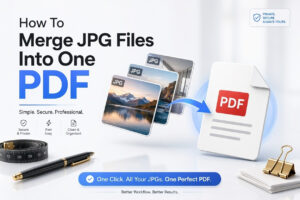
A folder full of JPG images is useful until you need to send them as one tidy file. Maybe you scanned receipts, photographed paperwork, saved class notes, or collected images for a client. Instead of attaching separate files and hoping they stay in order, you can combine them into a single multi-page document that is easier to store, print, share, and review.
Learning how to merge jpg files into one document usually means creating a PDF, because JPG is an image format rather than a true multi-page document format. The good news is that you do not need advanced design software for most tasks. Windows, Mac, mobile devices, and browser-based tools all offer practical ways to arrange JPG images in the right sequence and save them as one file. This article explains how to prepare your images, choose the right method, preserve readable quality, fix common issues, and create a final document that looks professional.
What It Means to Combine JPG Images
A JPG file holds one image, such as a photo, screenshot, or scanned page. It does not normally support multiple pages in one standard file. When people refer to merging JPGs, they usually want to turn several image files into one multi-page PDF document.
A PDF keeps each JPG on its own page while preserving the intended order. This makes it a practical format for contracts, receipts, reports, handwritten notes, and image-based records. Most recipients can open a PDF without installing extra software.
Prepare Your JPG Files Before Merging
Take a few minutes to organize the images before creating the document. Rename them in their intended order, such as `receipt-01.jpg`, `receipt-02.jpg`, and `receipt-03.jpg`. Clear file names make it much less likely that pages will appear in the wrong sequence.
Check every image for rotation, blur, dark shadows, and unwanted borders. A poorly scanned or sideways page will still look poor after conversion. Crop or rotate images first, especially when the document needs to be printed or submitted formally.
Useful preparation checks include:
- Place all intended images in one folder.
- Rename files with numbers so they sort correctly.
- Rotate pages to the same orientation.
- Crop out desks, fingers, shadows, and extra background.
- Review text at full size for readability.
- Remove duplicate or accidental photos.
- Keep original files until you have reviewed the finished PDF.
Merge JPG Files on Windows
Windows provides a simple built-in route for combining JPG files into a PDF. It works well for straightforward documents and does not require uploading sensitive images to a website. The main tool is the Microsoft Print to PDF feature.
Open the folder containing your prepared JPG images and arrange them by name. Select all of the files you want to include, right-click the selection, and choose Print. The print dialog lets Windows turn multiple selected images into a single PDF.
Using Microsoft Print to PDF
Choose “Microsoft Print to PDF” from the printer menu. Set the paper size, image quality, and page layout. For scanned letters or documents, choose a full-page photo option that fills the page without stretching the image unnecessarily.
Click Print, then choose a name and save location for the new PDF. Windows creates one document with the selected images arranged in the order shown in the folder. Open the result immediately to confirm that no page was cropped or reordered.
Managing Windows Print Settings
The Windows print dialog can sometimes add white margins or crop a photo that does not match the paper shape. Portrait scans generally work best with portrait paper, while wide images and landscape documents should use a landscape layout.
Avoid using “Fit picture to frame” if it cuts off text or edges. If the file is too large for email, reduce image dimensions before merging rather than choosing extremely low print quality, which may make text hard to read.
Combine JPG Images on a Mac
Mac users can create a multi-page PDF quickly with Preview. Preview is already installed on macOS and is especially convenient when you need to reorder pages, remove an unwanted image, or inspect the final document before saving.
Select your JPG files in Finder, open them with Preview, and make sure the sidebar is visible. The thumbnails in the sidebar represent the pages of your future PDF. You can drag thumbnails up or down to establish the correct order.
Creating a PDF with Preview
Once the images appear in Preview, select the thumbnails you want to include. Choose File, then Print. In the print window, open the PDF menu in the lower-left corner and select “Save as PDF.”
Give the document a clear name and choose where to save it. Preview retains the selected order and creates a standard PDF that can be opened on most devices. Review the page count before sharing the file.
Editing Pages Before Exporting
Preview also lets you delete a bad page or rotate a sideways image without rebuilding the document. Select a thumbnail, then use the rotate command or press Delete to remove it. These edits affect the working document, so keep your original JPG files available.
For pages that need a small visual correction, use Preview’s markup and adjustment tools carefully. Major edits are usually easier in a dedicated image editor before you assemble the final document.
A reliable Mac workflow looks like this:
1. Rename the JPG files in page order.
2. Select and open them in Preview.
3. Use the sidebar to check or change the sequence.
4. Rotate, remove, or replace any incorrect page.
5. Choose Print and save the pages as a PDF.
6. Reopen the saved PDF and check every page.
Use an Online JPG-to-PDF Tool Carefully
Online converters are convenient when you are working from a shared computer, Chromebook, or device without suitable built-in tools. They commonly allow you to upload images, drag them into order, select page size, and download one combined PDF.
They are best suited to non-sensitive images. Avoid uploading identification, bank records, medical files, legal paperwork, confidential client material, or personal documents unless you have reviewed the provider’s privacy practices and are comfortable with its data handling.
When Browser Tools Make Sense
An online tool can be useful when you need more layout control than a basic print dialog offers. Some services let you add margins, choose between A4 and Letter pages, switch orientation, or compress a large output file for email.
Use a stable connection and upload only the images you need. Before downloading, check the preview carefully. A browser tool may sort files by upload order rather than the names shown in your original folder.
Privacy and File Retention Considerations
Reputable services often state that uploaded files are removed after a limited period, but policies differ. Read the privacy and retention information rather than assuming that an upload disappears immediately after conversion.
For regular document work, it is usually better to use a local option such as Preview, Microsoft Print to PDF, or desktop PDF software. You retain more control over your images and avoid uploading them to a third party.
Create a Single PDF on a Phone or Tablet
A phone can handle simple image-to-PDF tasks well, especially when the JPGs were captured with the same device. Both Android and iPhone users can use print, share, file, or scanning features, though the exact labels vary by app and operating system version.
For clean paperwork, consider scanning pages through your device’s document-scanning feature instead of photographing each page normally. Scanning tools often detect edges, correct perspective, improve contrast, and produce a PDF directly.
iPhone and iPad Options
On an iPhone or iPad, select the images in the Photos app and use the Share menu. Depending on the installed apps and system options, you may be able to print the selection and save the result as a PDF through the share workflow.
The Files app and Notes app can also help when collecting scans or exporting documents. If you need a consistent process for receipts and paperwork, [Internal Link: scan documents with iPhone] can help you create cleaner source images before combining them.
Android Options
Many Android devices can generate a PDF through the Print option in the Gallery, Photos, or Files app. Select the desired images, choose Print, then select “Save as PDF” instead of a physical printer.
Android manufacturer interfaces differ, so menu names may not match exactly. Check the preview before saving, since the selected app may place one image per page, resize it, or sort images by the order in which you selected them.
| Method | Best for | Main advantage | Main limitation |
|—|—|—|—|
| Windows Print to PDF | Basic computer-based tasks | Built into many Windows systems | Limited page editing |
| Mac Preview | Rearranging and reviewing pages | Easy thumbnail ordering | macOS only |
| Phone print workflow | Fast mobile sharing | No computer needed | Layout options vary |
| Online converter | Browser-based convenience | Often includes page settings | Privacy concerns for sensitive files |
| PDF software | Frequent or complex work | Better editing and compression controls | May require a subscription or purchase |
Choose the Right Page Size and Layout
Page size matters when the images represent actual documents. A4 is widely used internationally, while Letter is common in the United States and Canada. Matching the output page size to the intended use reduces awkward margins and prevents unnecessary scaling.
For photos, screenshots, or mixed image dimensions, a standard PDF page size may create white borders. That is not automatically a problem. It is often better to leave borders than to enlarge an image until text becomes cropped or distorted.
Keep Text Clear Without Creating Huge Files
A combined PDF can become surprisingly large when each JPG is a high-resolution camera photo. Large files are slower to email, upload, and open. At the same time, aggressive compression can make small text, signatures, and fine details unreadable.
Aim for balance. For ordinary printed text, source images that are clear and reasonably sized are more important than extremely high resolution. If you can zoom into a page and read it comfortably before conversion, the final PDF is more likely to be useful.
Image Quality Settings That Matter
The most important factors are sharp focus, even lighting, correct rotation, and an appropriate image resolution. A clear 1–3 MB page image may be more useful than a larger image with blur, glare, or motion distortion.
Do not repeatedly save and re-compress the same JPG before merging. Each round of heavy JPG compression can introduce visible artifacts around letters and lines. Keep an original copy and edit from that whenever possible.
Compressing the Finished PDF
If the finished document is too large, use a PDF compression tool after you have checked that the pages are correct. Choose a moderate setting first, then compare the compressed copy with the original PDF at normal zoom.
Compression is particularly helpful for email attachments and online forms with size limits. For a document containing small print, stamps, or diagrams, test legibility before deleting the larger version.
Solve Common JPG Merging Problems
Most merging issues come from file order, page orientation, image cropping, or an unexpectedly large output file. These problems are easier to fix before you send the document, so always perform a quick final review.
Open the completed PDF on a device other than the one used to create it when possible. That check can reveal pages that look fine in the creation app but appear cropped, rotated, or too dark in a standard PDF viewer.
Common mistakes to avoid:
- Selecting images before sorting or renaming them.
- Mixing portrait and landscape pages without checking the preview.
- Letting “fill page” crop text near the edges.
- Using low-quality screenshots when original images are available.
- Uploading private records to an unfamiliar conversion website.
- Sending the PDF without opening it first.
- Deleting original JPGs before confirming the final document.
Keep Pages in the Correct Order
File managers often sort names alphabetically, which can create an unexpected order. For example, `page-10.jpg` may appear before `page-2.jpg` if the files are not named with leading zeroes. Use names such as `page-01.jpg`, `page-02.jpg`, and `page-10.jpg`.
If your files are already named inconsistently, use the thumbnail view in Preview, a PDF editor, or an online converter to drag pages into position. This is faster and safer than trying to remember the selection order from a large folder.
Handle Mixed Orientations and Sizes
A document can contain both portrait and landscape pages, but it needs deliberate formatting. Leaving a landscape image on a portrait PDF page is acceptable if the reader can rotate their screen, but it may be inconvenient for printing or formal submission.
For a cleaner result, rotate the JPG itself before merging and use a layout that suits the page. When a document includes charts, receipts, and letters together, retain the original orientation of each page unless a consistent printed format is required.
Make the Final Document Easier to Share
Use a specific file name that explains the contents, such as `March-2026-Expense-Receipts.pdf` or `Signed-Application-Supporting-Documents.pdf`. Vague names like `images.pdf` create confusion when files are downloaded, forwarded, or stored alongside similar documents.
If someone needs to search text inside your document, remember that a JPG-based PDF is usually image-only. It may not be searchable or selectable unless optical character recognition has been applied. [Internal Link: make scanned PDFs searchable] is a useful next step for longer image-based records.
A Practical Example for Receipts and Paperwork
Imagine you need to submit five receipts as one expense document. Start by photographing or scanning each receipt in good light. Crop each image so the receipt fills most of the frame, then name the files by date or expense order.
Next, combine the files into a PDF using your preferred device. Use A4 or Letter pages if the document will be printed, and leave enough margin that no receipt edges are cut off. Finally, open the PDF, verify that all five receipts are present, and confirm the total attachment size meets the submission portal’s limit.
Conclusion
The simplest way to turn several images into one usable file is to create a multi-page PDF. Built-in options such as Microsoft Print to PDF on Windows and Preview on Mac are often enough for ordinary scans, receipts, screenshots, and paperwork. Mobile print workflows can also work well when you need to prepare a document away from a computer.
The strongest results start with clean source images. Sort them in the right order, rotate pages before conversion, check for cropped edges, and inspect the finished PDF before sending it. Use online tools only when their convenience outweighs the privacy considerations, particularly when documents contain personal or confidential details.
Once you know how to merge jpg files into one document, the process becomes a quick routine: prepare the images, arrange the pages, export a PDF, and review the final copy. That small amount of care makes the file easier for anyone else to read, print, archive, or submit.
Frequently Asked Questions
Can JPG files be merged without software?
Yes. Windows and macOS include built-in ways to save multiple images as a PDF. On Windows, use Print with Microsoft Print to PDF. On Mac, open images in Preview and save them as a PDF.
Can I merge JPG files into one JPG?
Not as separate pages in a standard JPG file. You can stitch images into one long or wide composite image, but a PDF is better when each image should remain an individual document page.
Why are my JPG pages out of order?
The files may be sorting alphabetically rather than numerically. Rename them with leading zeroes, such as page-01 and page-02, or rearrange thumbnails manually before you export the final PDF.
Will merging JPG files reduce quality?
It can, depending on the export or compression settings. Use clear source images and avoid extreme compression. Review text and fine details in the completed PDF before using it for applications, records, or printing.
Can I merge JPG files on my phone?
Yes. Most iPhone and Android devices offer a Print or Share workflow that can save selected images as a PDF. The exact menu names vary, so preview the pages and order before saving.